
Can I Use My Domain Email with Gmail? Here's How
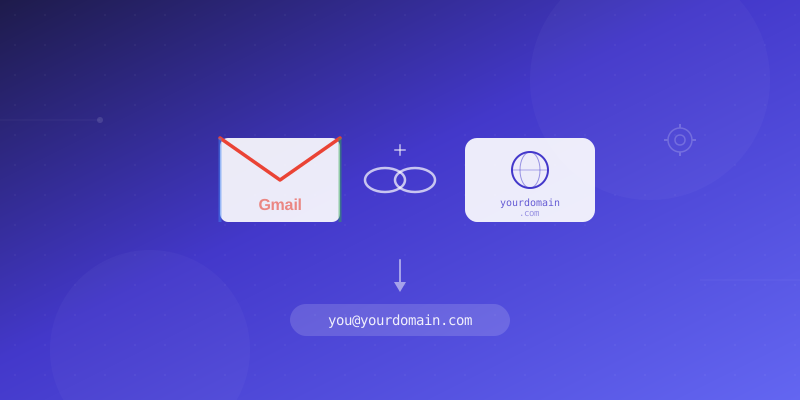
Yes, You Can Use Your Custom Domain Email with Gmail
One of the most common questions from business owners setting up professional email is whether they can use their custom domain address (like you@yourbusiness.com) with the Gmail interface they already know and love. The answer is yes, and there are several ways to do it depending on your budget and needs.
Option 1: Google Workspace (Paid)
The most seamless way to use your domain email with Gmail is through Google Workspace (formerly G Suite). This is Google's paid business email product that gives you Gmail with your own domain.
How It Works
Google Workspace replaces your email hosting entirely. Google becomes your email provider, and your MX records point to Google's servers. You get the full Gmail experience — the same interface, the same search, the same spam filtering — but with your custom domain address.
What It Costs
- Business Starter: $7.20/user/month (30 GB storage per user)
- Business Standard: $14.40/user/month (2 TB storage per user)
- Business Plus: $21.60/user/month (5 TB storage per user)
For a 5-person team, you are looking at $36 to $108 per month. This adds up over time, especially for startups and small businesses.
Pros and Cons
Pros: Native Gmail experience, excellent spam filtering, Google Drive integration, professional and familiar interface.
Cons: Expensive per-user pricing, Google controls your email infrastructure, you are locked into Google's ecosystem.
Option 2: Add Your Domain Email to Gmail for Free
If you already have email hosting with another provider (like EJAD Email), you can add your domain email account to your personal Gmail so you can send and receive domain email right from the Gmail interface.
Setting Up Email Receiving (POP3/IMAP Fetching)
Gmail can fetch emails from external accounts using POP3:
- Open Gmail and go to Settings (gear icon) then See all settings
- Click the Accounts and Import tab
- Under Check mail from other accounts, click Add a mail account
- Enter your domain email address
- Choose Import emails from my other account (POP3)
- Enter the POP3 server, username, and password from your email hosting provider
- Configure options like labeling incoming messages and leaving copies on the server
Setting Up Email Sending (SMTP)
To send email as your domain address from Gmail:
- In the same Accounts and Import tab, find Send mail as
- Click Add another email address
- Enter your name and domain email address
- Uncheck Treat as an alias if this is a separate email account
- Enter the SMTP server, port, username, and password from your email host
- Gmail will send a verification email — click the link or enter the code to confirm
Once configured, you can choose which address to send from when composing a new email in Gmail.
Pros and Cons
Pros: Free, uses Gmail's familiar interface, no additional software needed, keeps personal and business email in one place.
Cons: POP3 fetching can have delays (up to an hour), does not sync folders bidirectionally, sent mail may not appear in your email host's Sent folder, less reliable than native hosting.
Option 3: Use the Gmail Mobile App with IMAP
The Gmail mobile app on Android and iOS supports adding non-Gmail accounts. This lets you access your domain email through the Gmail app on your phone:
- Open the Gmail app
- Tap your profile picture, then Add another account
- Select Other
- Enter your domain email address and password
- The app will attempt to auto-configure IMAP settings
- If auto-configuration fails, manually enter your IMAP and SMTP settings
This method uses IMAP, which means full folder synchronization. Changes you make in the Gmail app (reading, deleting, moving) are reflected on your email server and other connected devices.
Pros and Cons
Pros: Full IMAP sync, familiar Gmail app interface, real-time notifications, free.
Cons: Only works on mobile, desktop still requires a separate client or web Gmail with POP3 fetching.
Option 4: Use Your Email Host's Webmail
This is not technically using Gmail, but it is worth mentioning as an alternative. Most modern email hosting providers offer webmail interfaces that rival Gmail in functionality. If your primary reason for wanting Gmail is the web-based interface, your email host's webmail might be sufficient.
EJAD Email, for instance, provides a clean, modern webmail interface accessible from any browser, plus dedicated EJAD Email apps. On paid plans, IMAP access for desktop and mobile clients gives you a complete email experience without the Gmail dependency.
Which Option Should You Choose?
Choose Google Workspace if:
- You need the full native Gmail experience with your domain
- You want seamless Google Drive, Calendar, and Meet integration
- Your team is already trained on Gmail and the budget supports per-user pricing
Choose Gmail POP3/SMTP integration if:
- You want to manage domain email in Gmail without additional cost
- Minor fetching delays are acceptable
- You already have email hosting with another provider
Choose Gmail mobile app with IMAP if:
- You primarily check email on your phone
- You want real-time sync on mobile
- You use a different client on desktop
Choose your host's webmail if:
- You want the simplest setup with no configuration
- Your email host provides a modern, capable webmail
- You prefer not to depend on Google for email access
The Cost-Effective Approach
For most small businesses, the smartest approach is to use an affordable email host for your domain email and access it through whatever client you prefer, whether that is Gmail's interface, a desktop client, or webmail. This gives you professional email at minimal cost while keeping the flexibility to use the tools you are most comfortable with.
EJAD Email's free plan with 7 GB storage and 5 email accounts gives you professional domain email through webmail and the EJAD Email apps. Upgrade to a paid plan for IMAP/POP3/SMTP access that works with any client, including Gmail, plus unlimited accounts and more storage. You get the best of both worlds: affordable hosting and the interface of your choice.
Get started with EJAD Email for free and, on a paid plan, connect it to Gmail or any email client you prefer.